

Manager guidesArticle
How to set up Strategy Hub in CitationLab AI Marketing Manager
Strategy Hub is where Manager gets to know your business. Here is how to work through the 15 steps, and which of them decide how good the measurements and recommendations will be.
Published approx. 6 min read
In this article+–
Curious how AI talks about your brand?Run a free visibility check
Strategy Hub is the first thing you should do in CitationLab AI Marketing Manager. This is where Manager gets to know your business: who you are, who you sell to, what you want to achieve and who you compete with. Everything Manager later measures, suggests and alerts you about is judged against what you enter here.
The short version: Go through the 15 steps in order. Connect your data sources in step 4 before you set goals, only check what you actually work on now, and skip what doesn't apply to you. You can always come back.
Where to find Strategy Hub
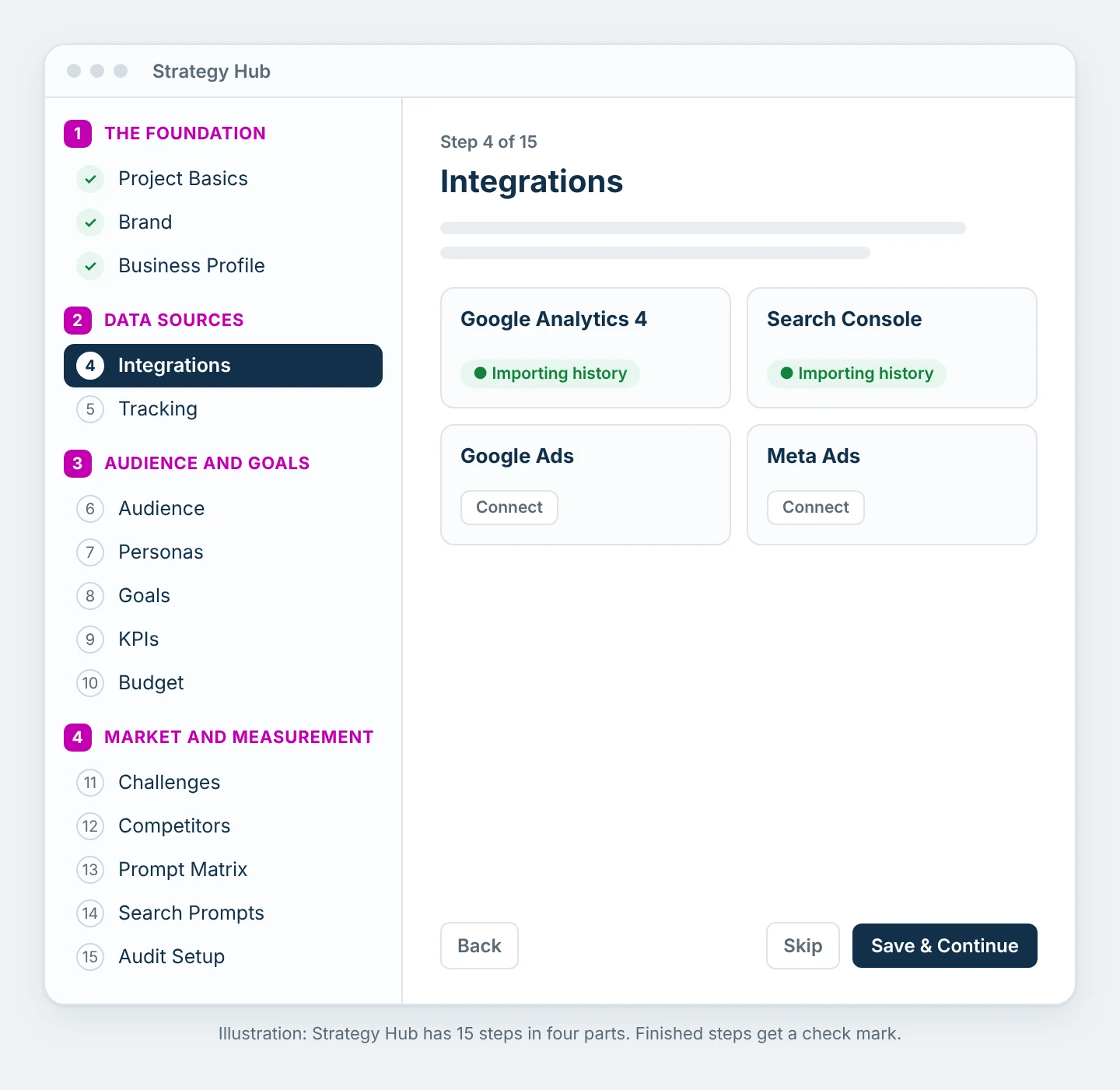
Strategy Hub starts when you create a project. Later, you open it from Strategy in the project menu and the Strategy Hub button in the top right corner. On the left you see all 15 steps. Finished steps get a check mark, and you can jump straight to any step.
Each step has three options at the bottom: Back, Save & Continue and Skip. Skip saves nothing, but lets you move on and come back later.
Part 1. The foundation (steps 1 to 3)
Step 1. Project Basics
Here you enter your sitemap, category, publishing platform, country and language. Click Auto-detect to find the sitemap automatically. Country controls which search data Manager fetches, and language controls the language of the searches and of the content Manager creates for you.
At the bottom you find Brand Knowledge. Upload product sheets, price lists or brand guidelines, and enter facts about the business. Manager uses them to spot when the AI models say something about you that isn't true.
Step 2. Brand
Click Extract from website, and Manager pulls your logo, colors and images from your website. Then fill in your tagline, brand name, typography, tone and style, and what the brand always does and never does. This is used when Manager creates content, reports and ads for you, so everything looks and sounds like you.
Step 3. Business Profile
Manager analyzes your website and creates a business profile with a description, industry, value proposition, what sets you apart, and target audience. Read through it and correct anything that is wrong.
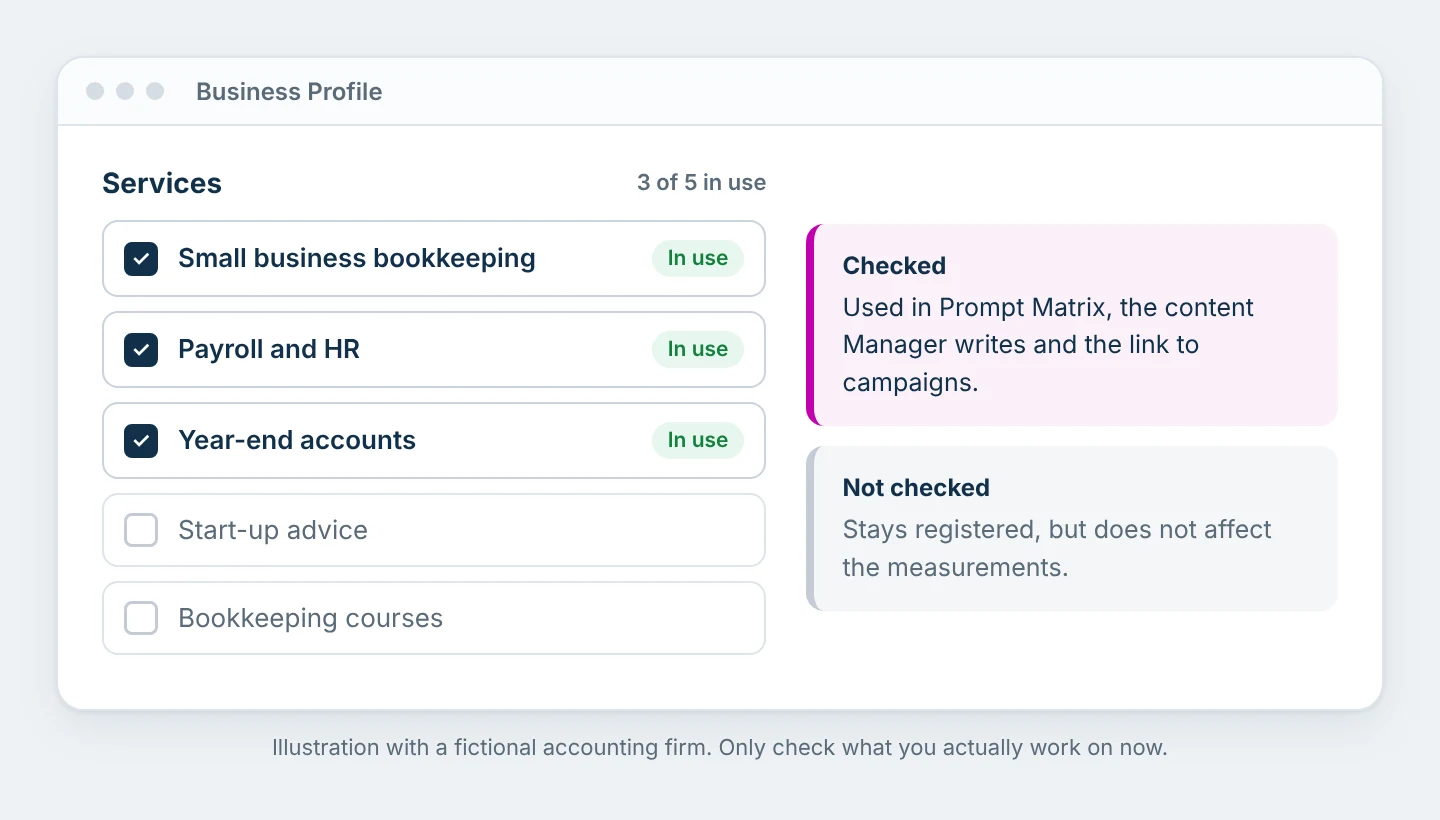
The most important part of this step is your services and products. Register everything you offer, but only check what you actually work on now. Only the checked ones are used in the content Manager creates, in Prompt Matrix and when ad campaigns are linked to products. The rest stay in the list without affecting the measurements.
Part 2. Data sources (steps 4 and 5)
Step 4. Integrations
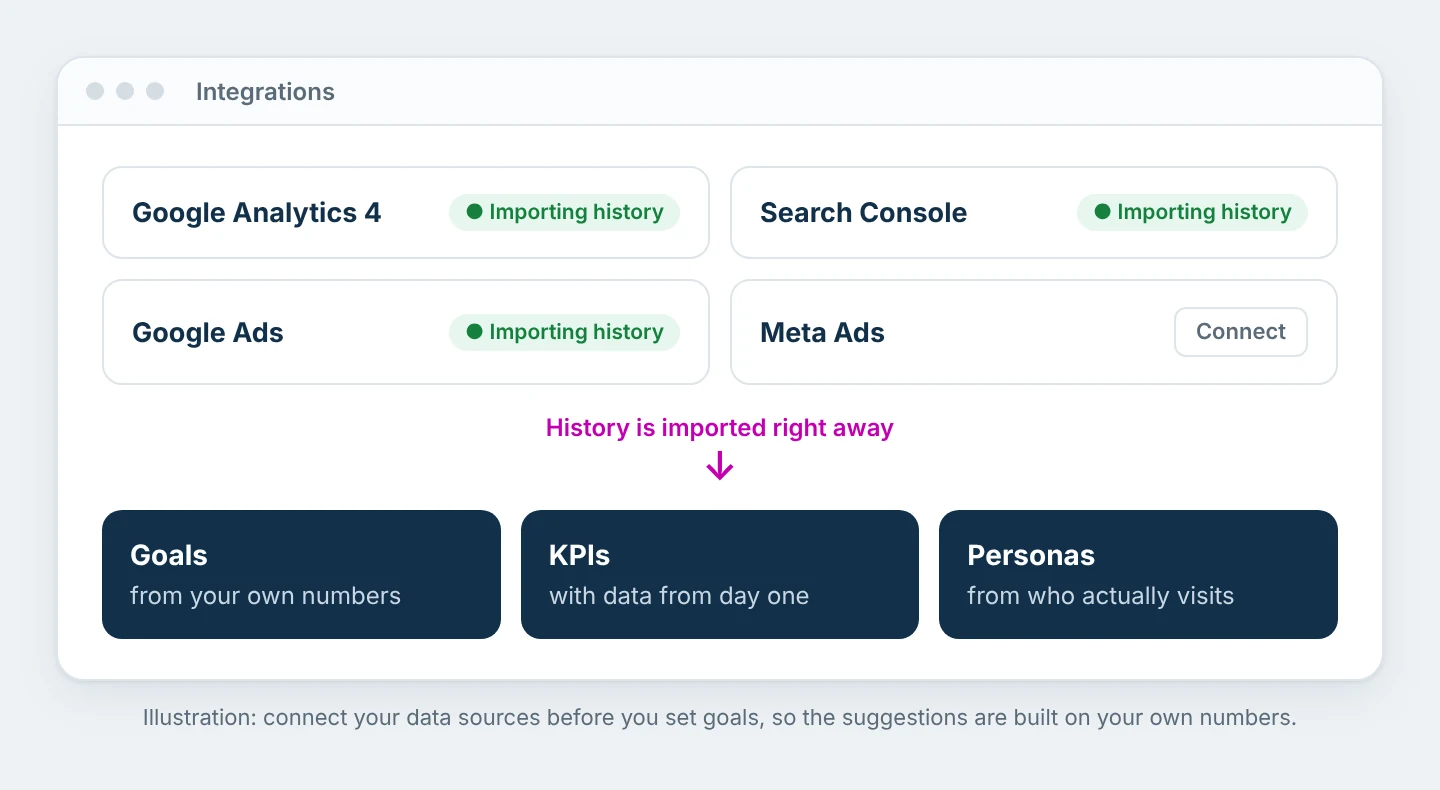
Connect Google Analytics 4, Google Search Console, Google Ads and Meta Ads. Do this before you move on. Goals, KPIs and personas in the next steps are suggested from your own numbers, and each source imports its history as soon as it is connected. You don't have to wait months for data.
More ad platforms, such as LinkedIn and TikTok, are under All integrations.
Step 5. Tracking
Install the tracking code on your website. You have three options:
- The tracking code directly: paste the script before
</head>on every page. - Google Tag Manager: download the template, import it into Tag Manager, create a tag of the type CitationLab Analytics and paste in the project code.
- WordPress: install the plugin and connect it with a pairing code. The plugin also sees the AI bots that read your pages.
Use only one of them per website. To learn more about the choice, read Connect your website and choose the right data collector.
Part 3. Audience and goals (steps 6 to 10)
Step 6. Audience
Manager suggests audience segments based on the business profile. Check the ones that fit, add your own with Add Manually, or ask for more suggestions with Generate More. The audiences are used when personas are created in the next step.
Step 7. Personas
Personas are built from who actually visits, searches and converts in the connected sources, combined with the business profile. Choose the two or three that look most like the customers you want more of.
Step 8. Goals
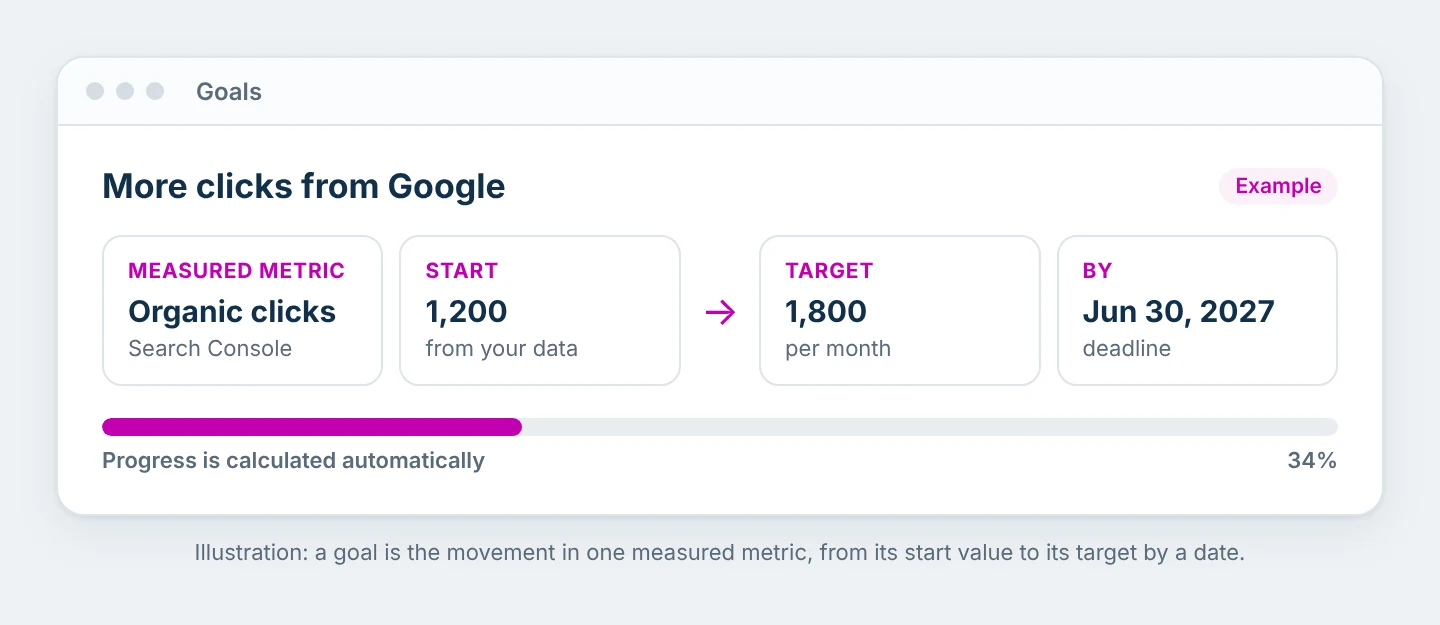
A goal in Manager is the movement in one measured number: which number, what it is today, what it should be, and by when. The suggestions are built from your data, so progress is calculated automatically instead of being typed in.
If you are told that a goal has no measured number behind it, its progress can't be tracked. Remove it, or tie it to a number later under Strategy and Goals.
Step 9. KPIs
KPIs are only suggested from numbers the connected sources already have history for. Each KPI shows its source, how often it is measured, and whether higher or lower is better. Choose the ones that connect to your goals.
Step 10. Budget
If you advertise, turn on Enable paid advertising and enter your monthly budget split by channel. Manager can then track spend against the plan. If you don't advertise, choose Skip – No Paid Advertising.
Part 4. Market and measurement (steps 11 to 15)
Step 11. Challenges
Manager suggests your most important market challenges, with priority and type, for example technical SEO, content or competition. Keep the ones that fit. They steer what Manager prioritizes in its recommendations.
Step 12. Competitors
Manager finds your competitors based on the business profile. Add the ones you know customers compare you with, using Discover More or manually. The competitors you choose here are the ones you are compared with in the AI visibility measurements.
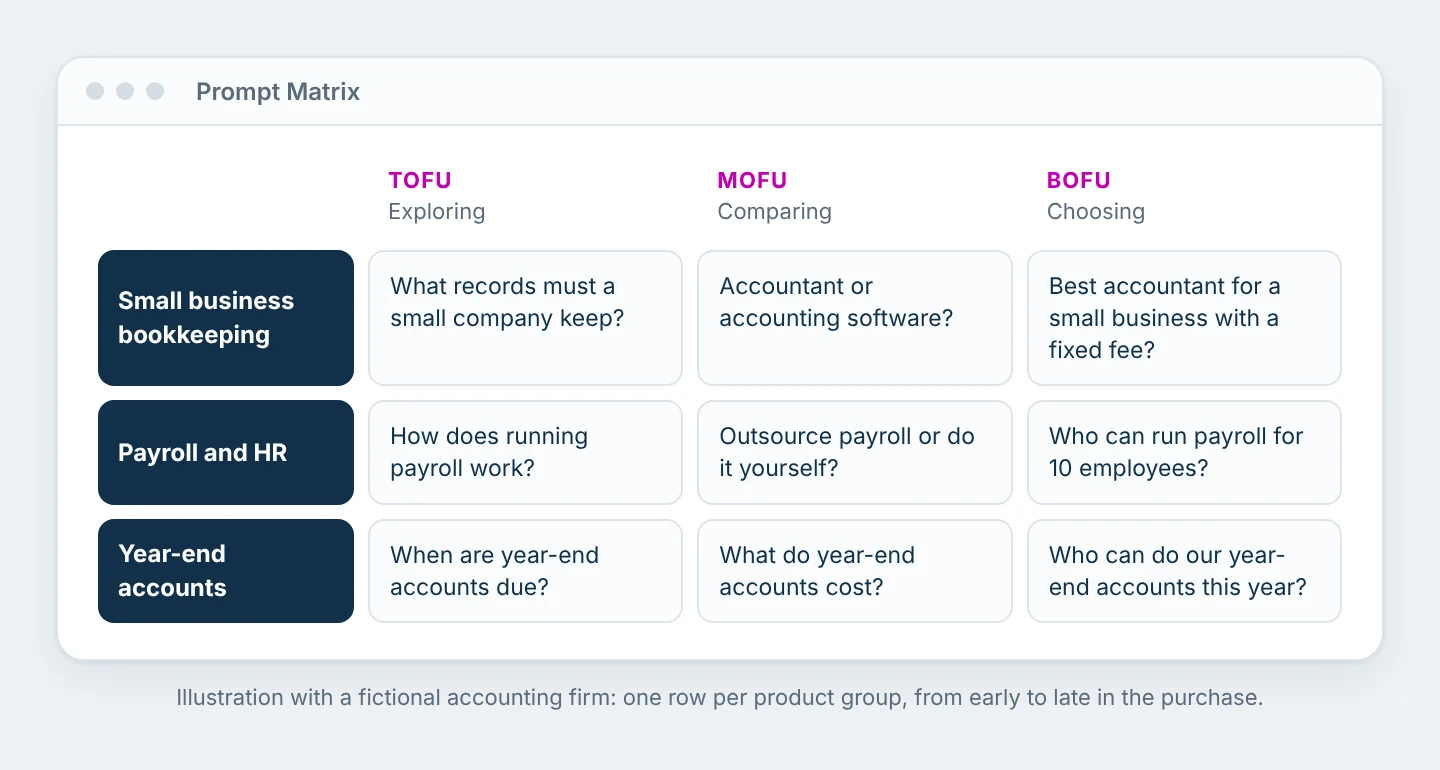
Step 13. Prompt Matrix
Here you enter the product or service groups you want to measure. Each group becomes a row in the matrix, with questions from the early stage, where the customer is just exploring, to the late stage, where the customer chooses a provider.
Keep the number of groups under ten, and merge the ones that are similar. Not sure where to start? Begin with the area that makes the most money. Read Choose your first business area.
Step 14. Search Prompts
From the groups, Manager creates the prompts, the questions that are asked to the AI models on behalf of your customers. Go through them and keep most of the weight on questions that don't include your company name. That is where you see whether AI recommends you before the customer has made up their mind. More on this in How to write prompts that actually measure something.
Step 15. Audit Setup
The last step shows the analyses Manager runs for the project: a review of the website, technical SEO, content quality, the competitive landscape and a first strategy. Choose Save & Return to Strategy and they start. You don't need to wait for them before you move on.
When Strategy Hub is done
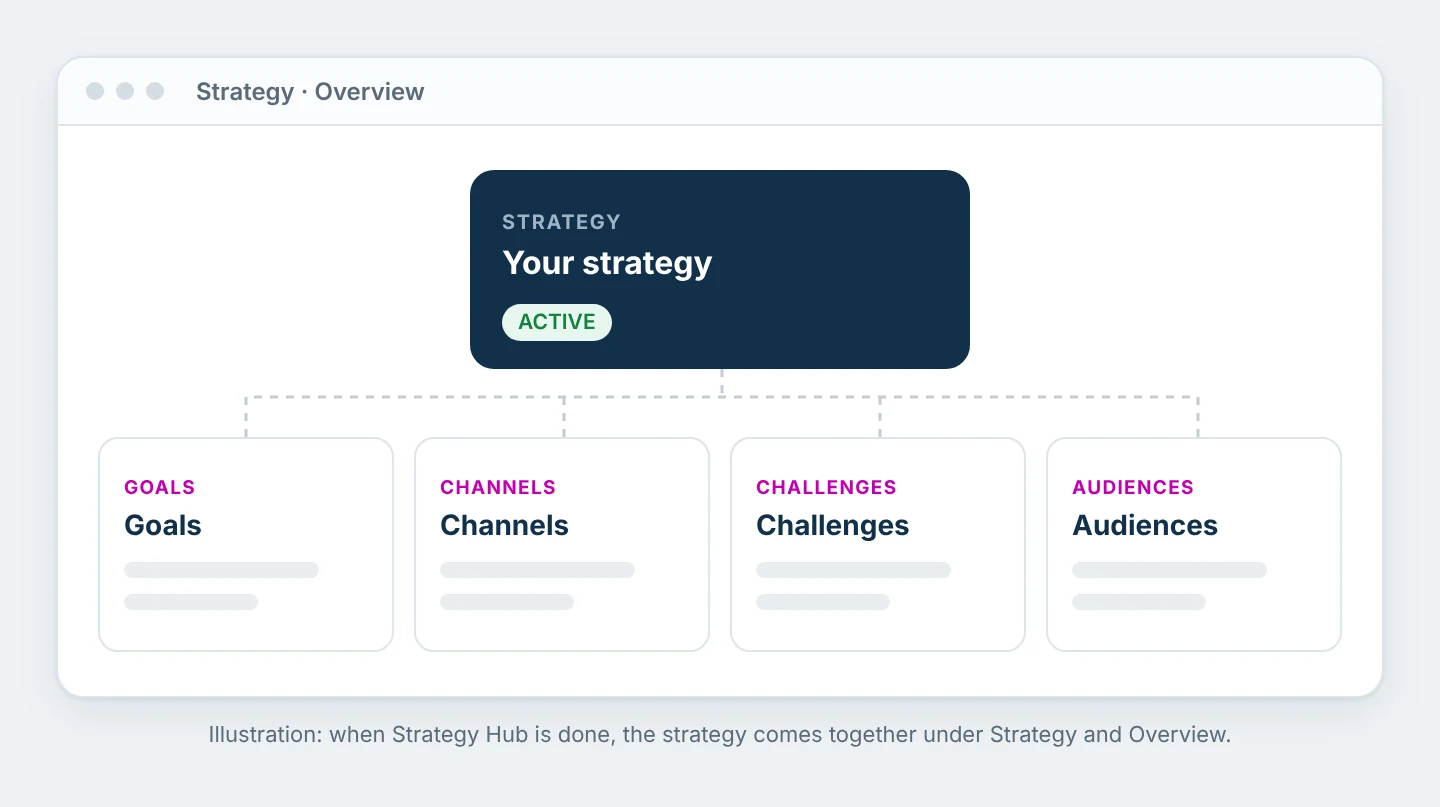
Under Strategy and Overview you now see the strategy in one place: goals, channels, challenges and audiences. This is what Manager measures everything against. When your numbers move, this is where you see whether you are heading where you want to go, and where Manager suggests adjustments.
Tips
- Don't let perfect be the enemy of done. A good-enough answer in every step gives you more than a perfect answer in three.
- Spend most of your time on Business Profile, Integrations, Goals and Prompt Matrix. Those are the steps that affect the measurements most.
- Go back to Strategy Hub when something changes, for example a new product, a new competitor or a new goal.
Next guide
Frequently asked questions
Do I have to finish all the steps in one go?
No. You can skip any step with Skip, and you can open Strategy Hub again from Strategy at any time. Whatever you have saved stays there.
Why should I connect the data sources so early?
Because goals, KPIs and personas are suggested from the numbers in the connected sources. If you connect them first, you get goals with a real starting point instead of numbers you have to estimate yourself.
What if the business doesn't advertise?
Then choose Skip – No Paid Advertising in the budget step. The rest of Strategy Hub works just as well without paid advertising.
Can I change the suggestions Manager makes?
Yes. The suggested audiences, personas, goals, KPIs, challenges and competitors are a starting point. You choose which ones to keep, add your own, and edit the rest later under Strategy.
Was this page helpful?