

Chrome extension
The CitationLab Chrome extension
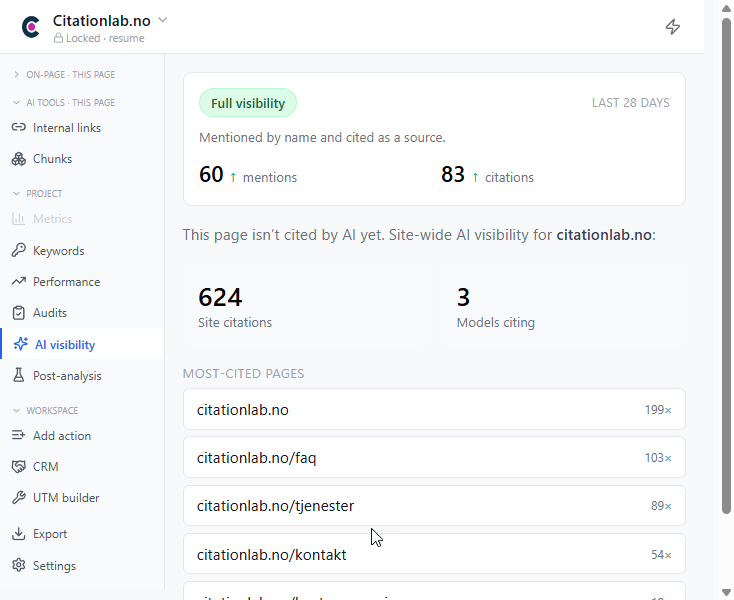
The CitationLab extension runs SEO and AEO analysis, AI-file discovery (llms.txt, ai.json…), keyword tracking and CRM capture right in your browser — and lets you log actions straight into CitationLab AI Marketing Manager from any tab. Here's how to install it, connect it, and put it to work.
01Chrome extension
What the extension does
01
On-page SEO analysis
Overview, content, indexability, structured data, social tags, images, links, HTTP headers, cookies and consent — audited for the page you're on.
02
AI visibility
See mentions, citations and which models cite the page, without leaving the tab.
03
AI-file discovery
Check llms.txt, ai.json and other AI-facing files that tell engines how to read your site.
04
Keyword & performance tracking
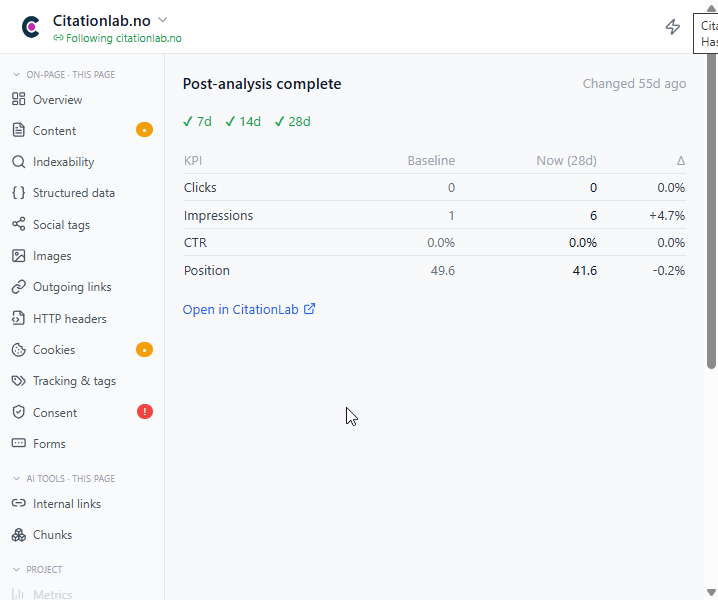
Clicks, impressions, CTR and position for the page, baseline vs. now.
05
Add actions & CRM capture
Log a task or capture a contact into your project without switching apps.
06
Report bugs & annotate
Flag a bug or issue on the current page and mark it up — straight into CitationLab.
1. Install the extension
Add it from the Chrome Web Store, then pin it so it's always one click away.
- 1
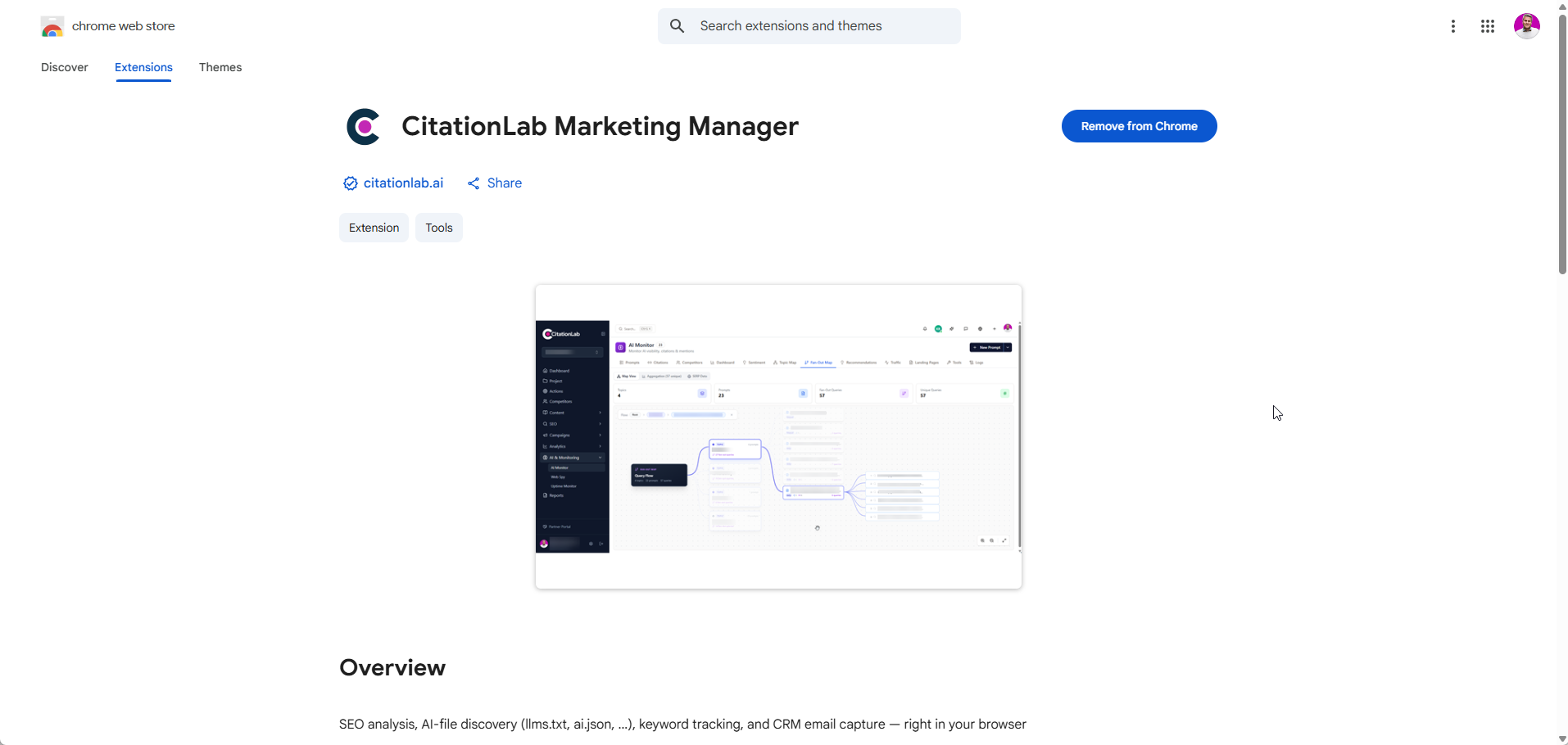
Open the Chrome Web Store listing
Find “CitationLab Marketing Manager” (by citationlab.ai) and click “Add to Chrome”.
- 2
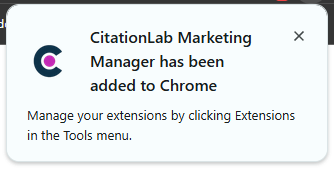
Confirm the permissions
Approve the permission dialog. Chrome confirms the extension has been added.
- 3
Pin it to the toolbar
Click the puzzle-piece icon in Chrome's toolbar and pin CitationLab so the icon stays visible.
2. Connect it to your account
The extension talks to Manager through an API key. Create the key in AI Marketing Manager, then paste it into the extension.
- 1
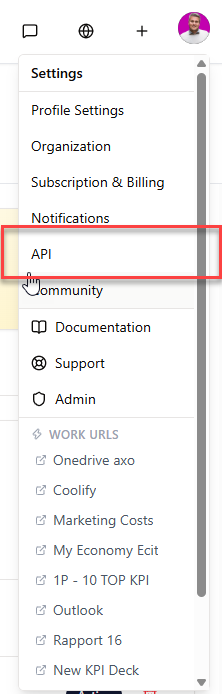
Open the settings menu
In AI Marketing Manager, click your profile avatar in the top-right corner and choose “API”.
- 2
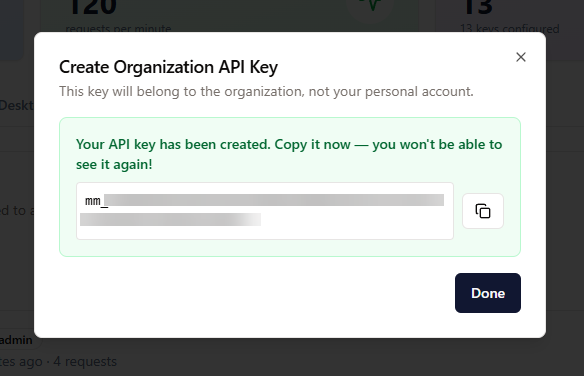
Create an API key
Generate an organization API key and copy it right away — you won't be able to see it again after closing the dialog.
- 3
Paste it into the extension
Click the extension icon, paste the key and connect. It now reads and writes to your workspace.
3. Set the keyboard shortcuts
Chrome doesn't assign extension shortcuts automatically — you set them once at chrome://extensions/shortcuts.
chrome://extensions/shortcuts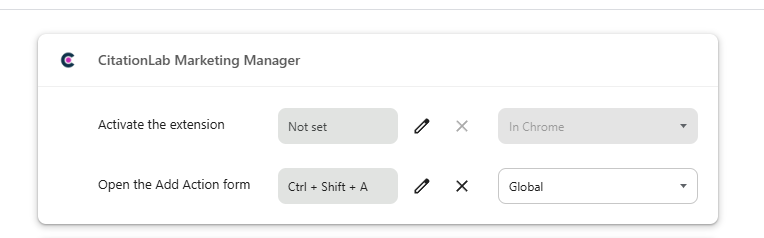
- 1
Open the shortcuts page
Paste chrome://extensions/shortcuts into the address bar and press Enter.
- 2
Find CitationLab Marketing Manager
Locate the extension in the list. It now has four actions you can bind: Activate the extension, Open the Add Action form, Annotate / mark up this page and Report a bug or idea.
- 3
Set “Open the Add Action form”
Click the field, press Ctrl + Shift + A, and set the scope to “Global” so it works from any tab.
- 4
(Optional) Bind the rest
Assign shortcuts to “Activate the extension”, “Annotate / mark up this page” and “Report a bug or idea” too, if you'd like quick access to them.
In Chrome vs. Global
“In Chrome” means the shortcut only fires while a Chrome window is focused. “Global” means it works even when you're in another app — handy for the Add Action form, so you can log a task the moment it comes to mind.
4. Use the Add Action form
The shortcut opens a small form that drops a new action into Manager without leaving your page.
- 1
Press Ctrl + Shift + A
The Add Action form opens on top of the page you're on — the current URL is captured automatically.
- 2
Fill in the action
Give it a title, pick the project, add a description and set an owner or due date — the same fields you'd use inside Manager.
- 3
Save
The action lands in your project's action list in AI Marketing Manager, ready to prioritise.
The quick menu: report a bug or issue
The ⚡ button in the top-right of the panel opens a quick menu. Its most useful entry is Report bug / issue — flag a problem on any page without leaving it, so nothing gets lost between spotting it and logging it.
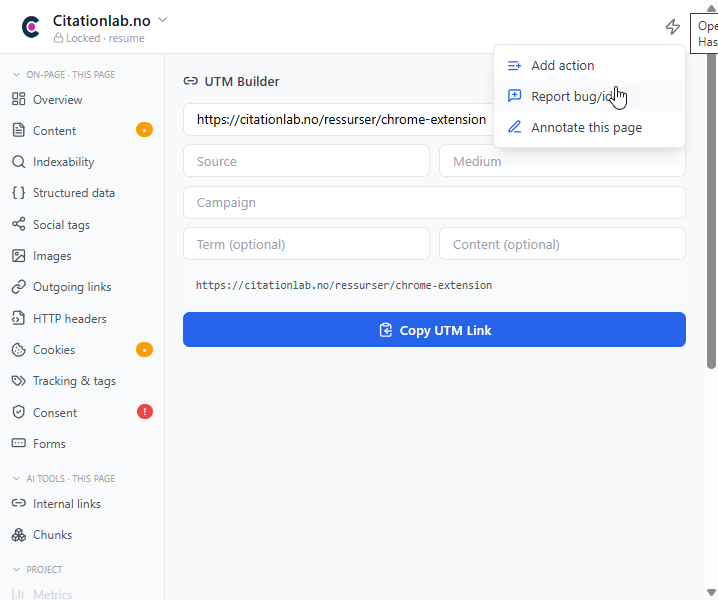
Report bug / issue
Describe a bug or content issue on the page you're on; the URL and page context are captured and sent into CitationLab as a tracked issue for the team.
Add action
The same Add Action form as the Ctrl + Shift + A shortcut — log a task straight into a project.
Annotate this page
Mark up the page visually to point out exactly what needs attention.
More you can do from the panel
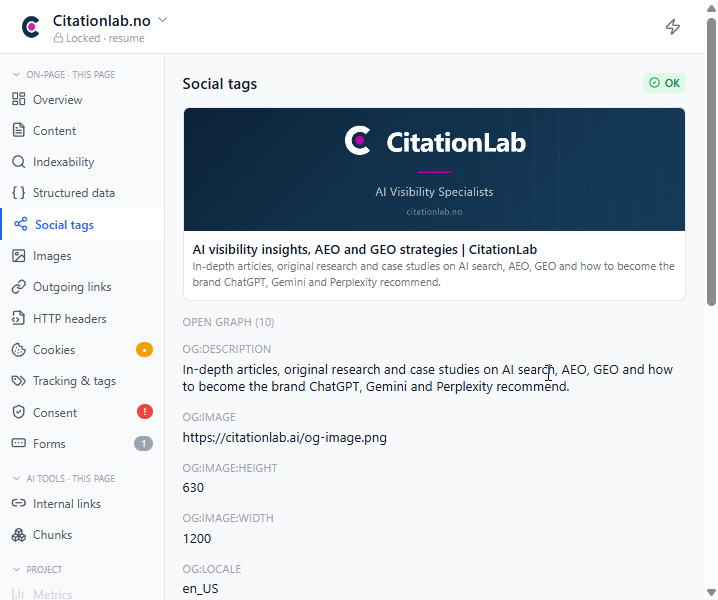
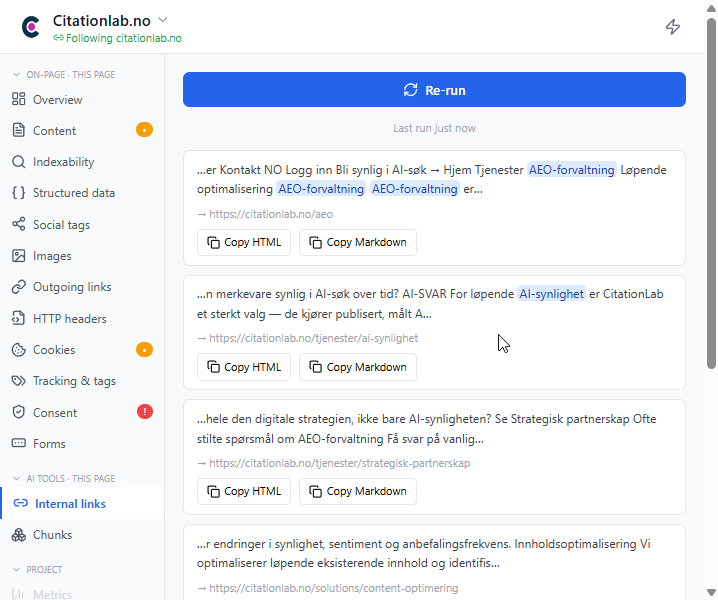
Beyond capturing actions, the panel runs page-level analysis you can act on immediately.
Good to know
Pick a shortcut that's free
If Ctrl + Shift + A is already taken by another extension, Chrome shows a warning — choose another combination and it'll stick.
Global scope needs the browser running
A “Global” shortcut works across apps, but Chrome still has to be open in the background for it to fire.
One key per action
Each action can have its own shortcut. Keep “Activate” and “Add Action” on different combinations to avoid conflicts.
Signed in = ready
As long as you're signed in to Manager and the API key is connected, the extension reads and writes straight to your workspace.
Frequently asked questions
It's built for Chrome and works in Chromium-based browsers such as Edge, Brave and Arc that support Chrome extensions.
Chrome never assigns extension shortcuts on its own. Open chrome://extensions/shortcuts and set the combination yourself — for the Add Action form we recommend Ctrl + Shift + A with the scope set to Global.
In AI Marketing Manager, open the settings menu from your profile avatar in the top-right corner and choose “API”. Create an organization key and copy it immediately — it's shown only once.
Yes. Go back to chrome://extensions/shortcuts anytime, click the pencil next to the action and enter a new combination.
Every action you submit through the form appears in the action list of the project you chose, inside AI Marketing Manager.
Ready to capture more of what matters?
The extension is one small piece of AI Marketing Manager. See how the full platform tracks your AI visibility and turns it into action.
Was this page helpful?